Organizing Screenshots with Claude Cowork

Watch the full video here - https://youtu.be/gyGGIT97SwI
1. Identify the Problem 0:00
- The screenshots folder contains roughly 3000 screenshots, most of which are rarely used.
- Uploading or pasting screenshots takes time due to the cluttered folder.
2. Organize Screenshots into Folders 0:50
- Use Claude Cowork to automatically organize screenshots into folders by year and month.
- Example: Screenshots from July 2023 are moved to a dedicated folder.
3. Set Up Automatic Cleanup 1:20
- Configure Claude to run the organization process automatically every month.
- This leaves only the current month's screenshots in the main folder.
4. Use Claude Desktop App 2:04
- Access Claude through the desktop app for better functionality.
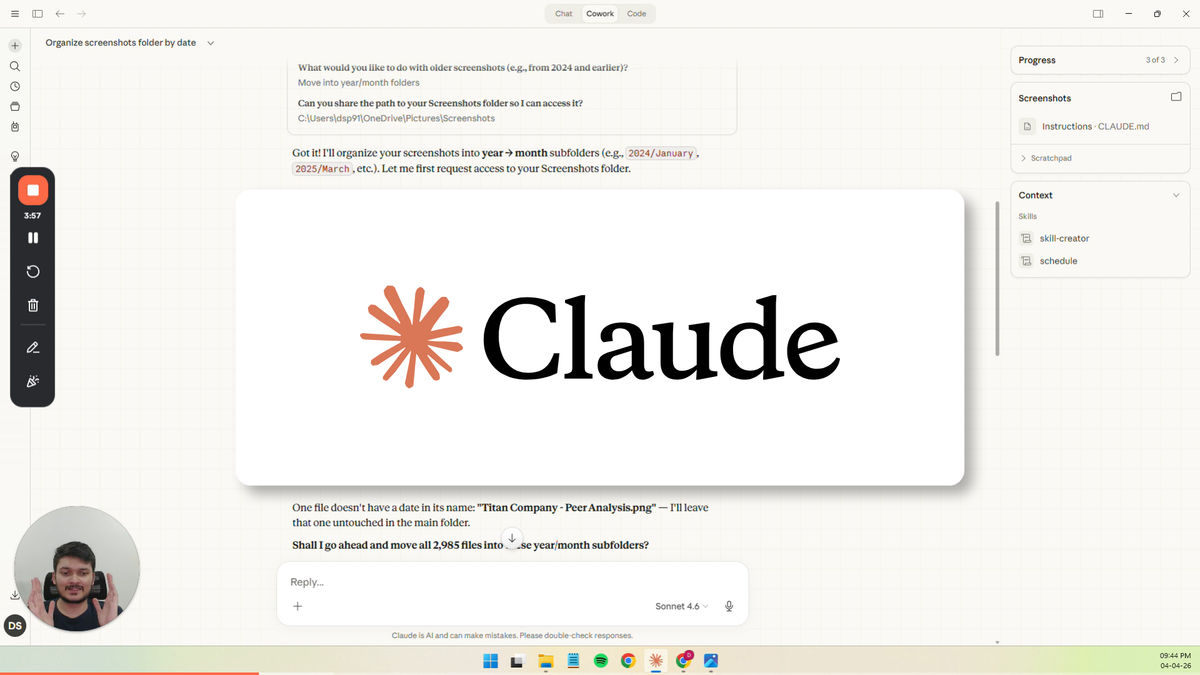
- Provide the path to the screenshots folder and specify the desired folder structure.
5. Clarify Instructions to Claude 2:36
- Include a line in the prompt for Claude to ask clarifying questions if needed.
- This ensures Claude understands the task correctly.
6. Review and Confirm Actions 3:12
- Claude will ask questions to confirm the folder path and structure before proceeding.
7. Create a Scheduled Skill 4:41
- Once satisfied with the output, ask Claude to create a skill that automates the organization task.
- Schedule this skill to run on the first of every month.
8. Monitor and Adjust the Skill 8:00
- Check the history of the scheduled task to ensure it runs correctly each month.
- Address any issues, such as files not being moved due to naming conventions.
9. Provide Feedback for Improvement 10:00
- If issues arise, provide feedback to Claude to improve the skill's functionality.
- Specify the need for using the creation timestamp instead of the modification timestamp.
10. Finalize and Save Changes 15:27
- Save any updates to the skill after adjustments are made.
- Ensure the skill is functioning as intended for future use.